Uploading Your Data

Any data conforming to the Stipa Data Specification can be easily uploaded to Stipa Cloud for storage, retrieval, and analysis.
After logging in to the dashboard page, navigate to the Upload view by selecting the appropriate tab from the menu on the left side of the screen.
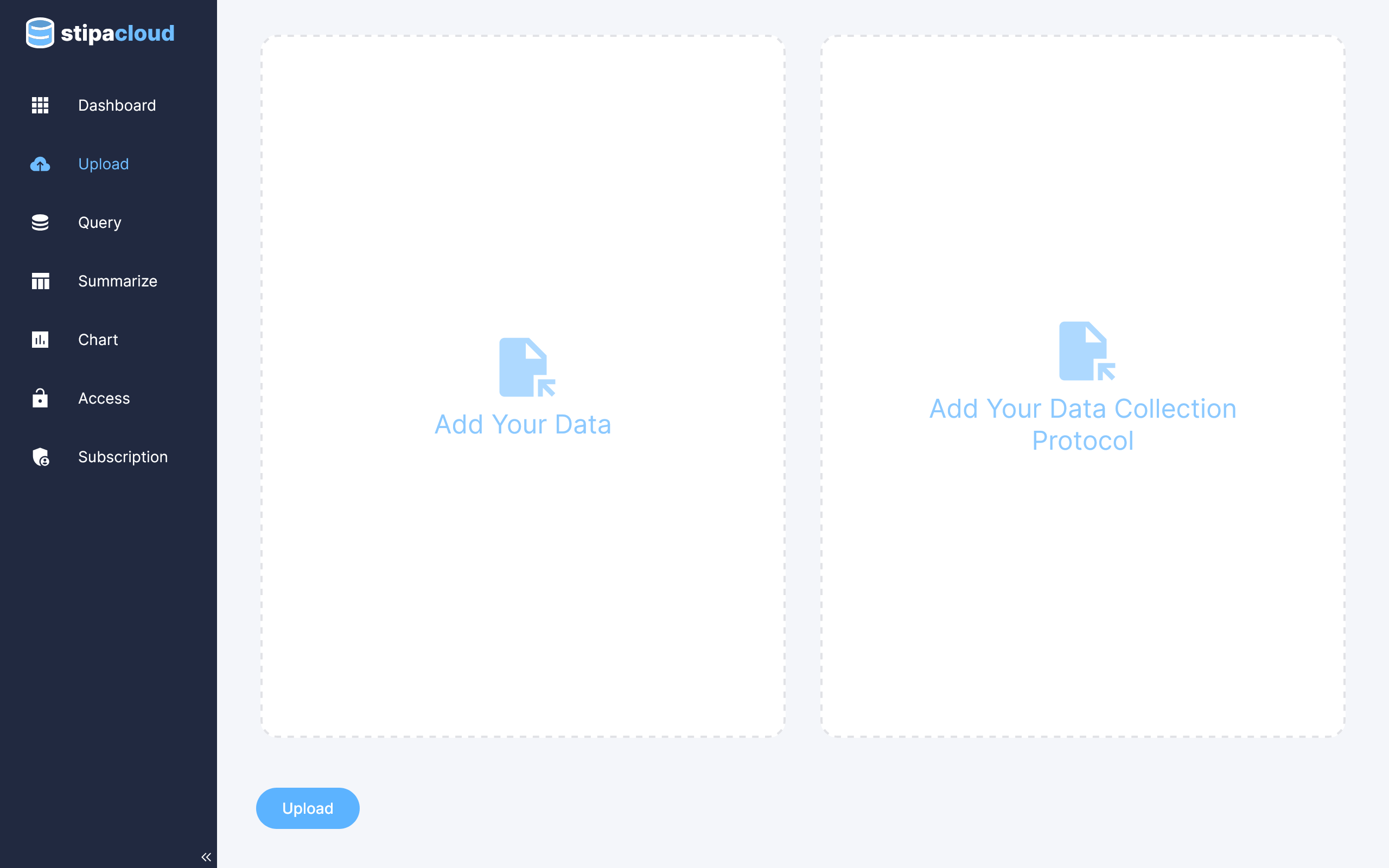
Figure 1. Data upload view.
Drag and drop the data file you wish to upload onto the appropriate box. Alternatively, click on the appropriate box and select the data file using your browser's file chooser. A green check mark will appear if the data are correctly formatted.
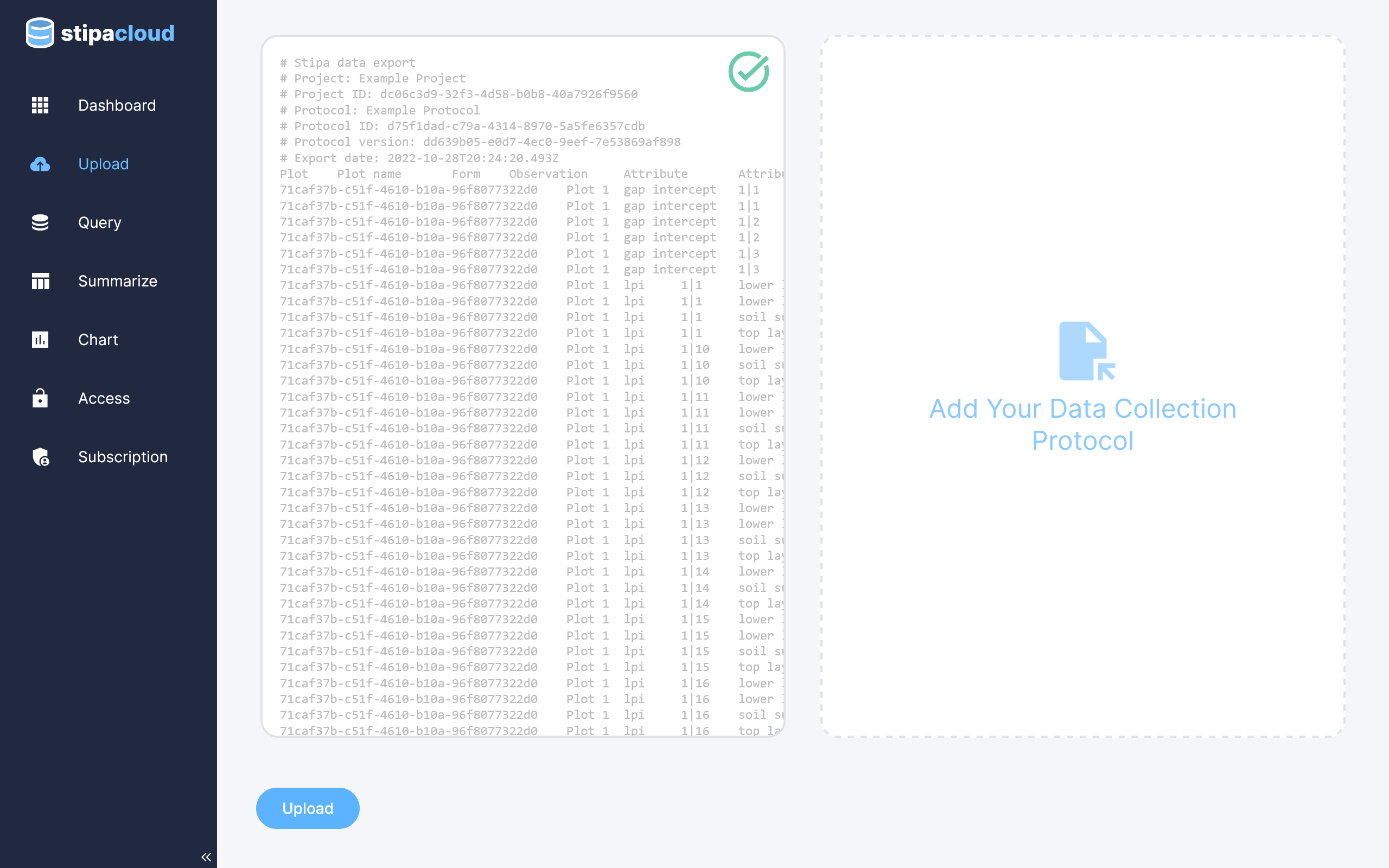
Figure 2. Adding data.
All data conforming to the Stipa Data Specification will have an associated Stipa Protocol. Drag and drop the file containing this protocol onto the appropriate box. Alternatively, click on the appropriate box and select the Stipa Protocol file using your browser's file chooser.
Stipa Cloud will automatically check that the added data are consistent with the added Stipa Protocol. A green check mark will appear if the Stipa Data Protocol is correctly formatted and the data are successfully validated.
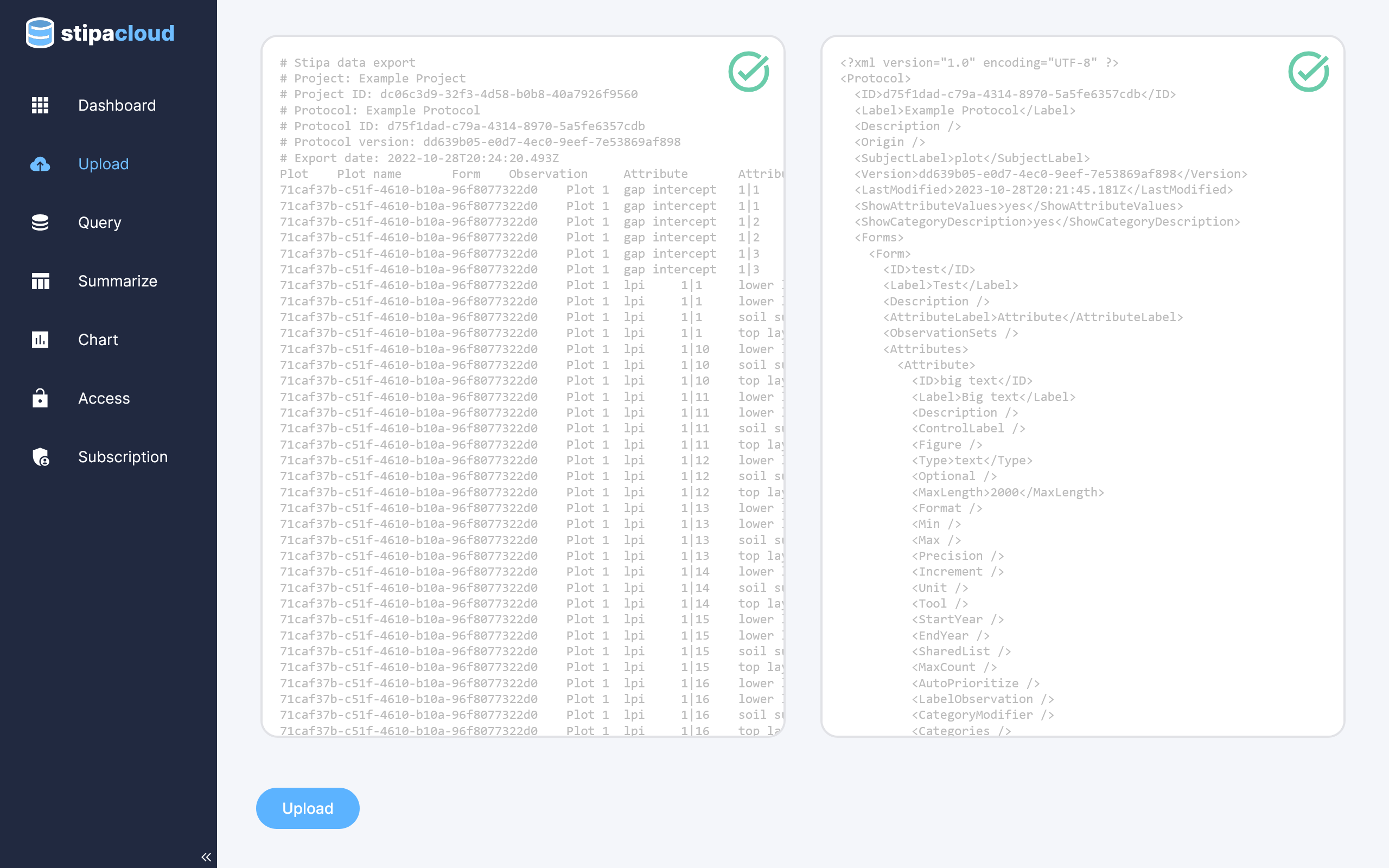
Figure 3. Adding the associated Stipa Protocol.
Any inconsistencies between the data and Stipa Protocol will result in a dialog box being displayed. Click on the View Error Messages accordion to view where each validation error occurs in the data.
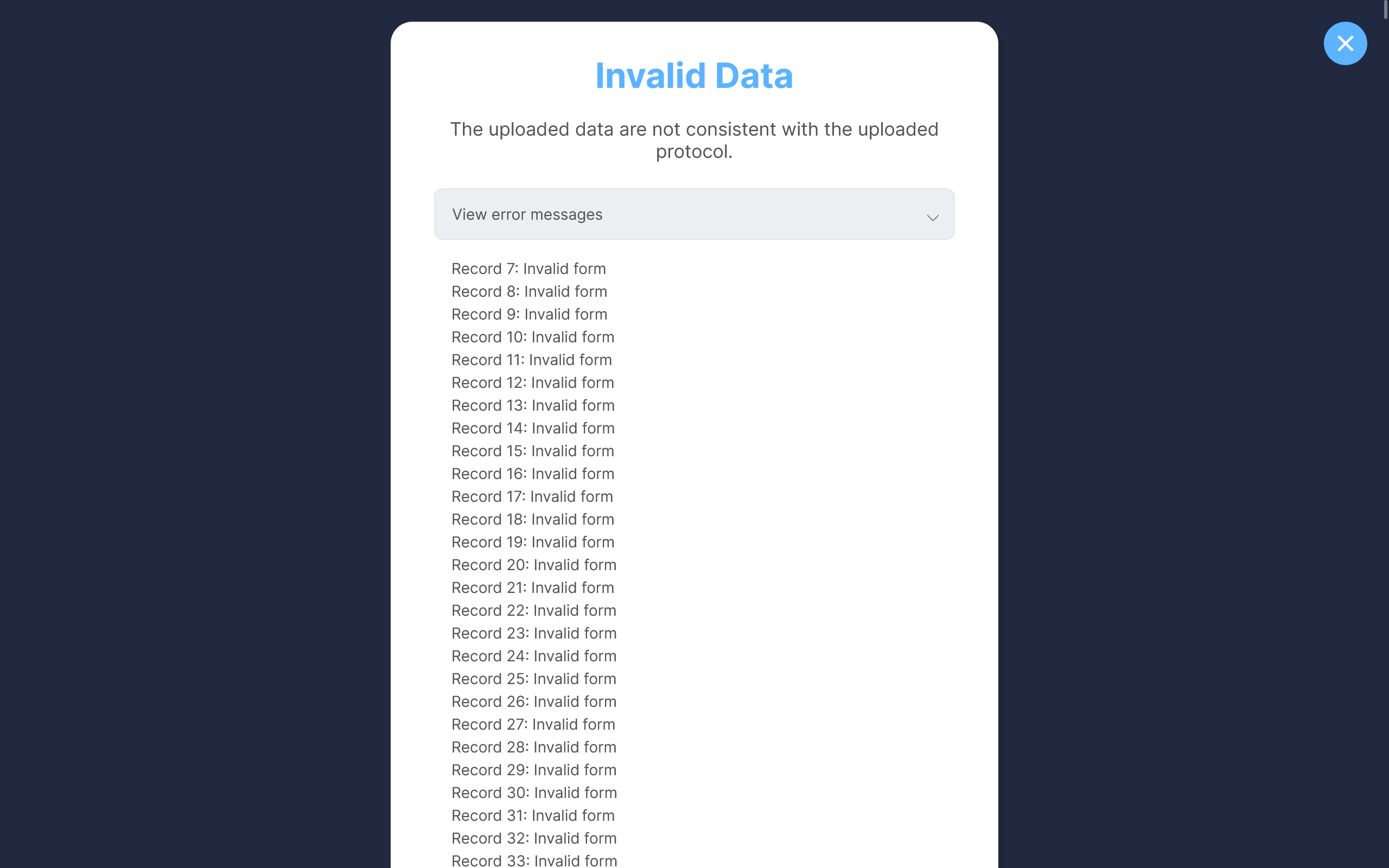
Figure 4. Reviewing validation errors.
The uploaded data can be immediately accessed via the Dashboard view. Data are organized by data collection Project. If a Project already exists for the uploaded data, the new data are simply added to the existing Project data, ignoring any duplicate entries. Otherwise, a new Project is created.
Export, share, merge, rename, or delete a Project using the overflow menu located in the upper right corner of the catalog item.
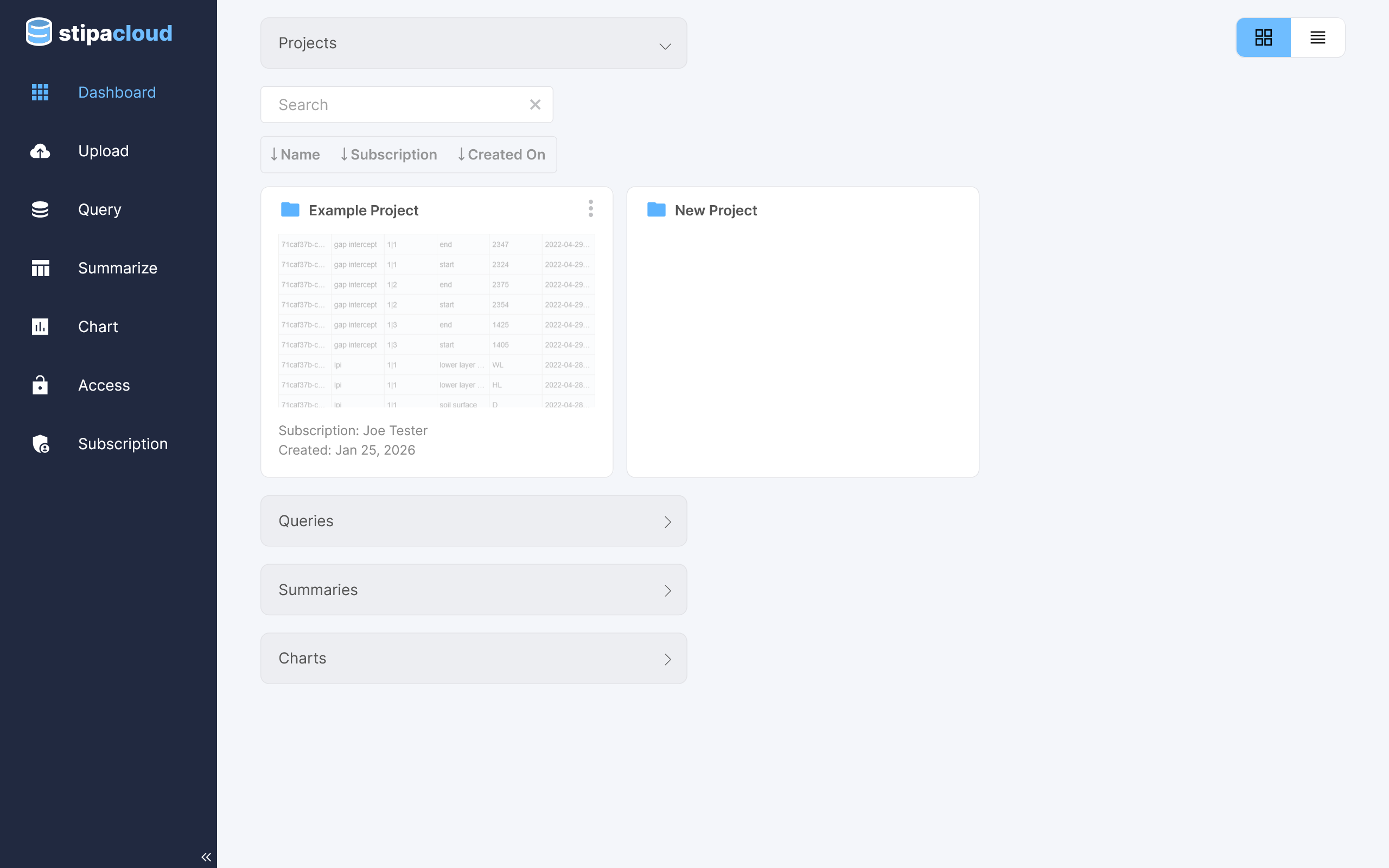
Figure 5. Browsing available projects.
Double click the desired Project to view its data in tabular format.
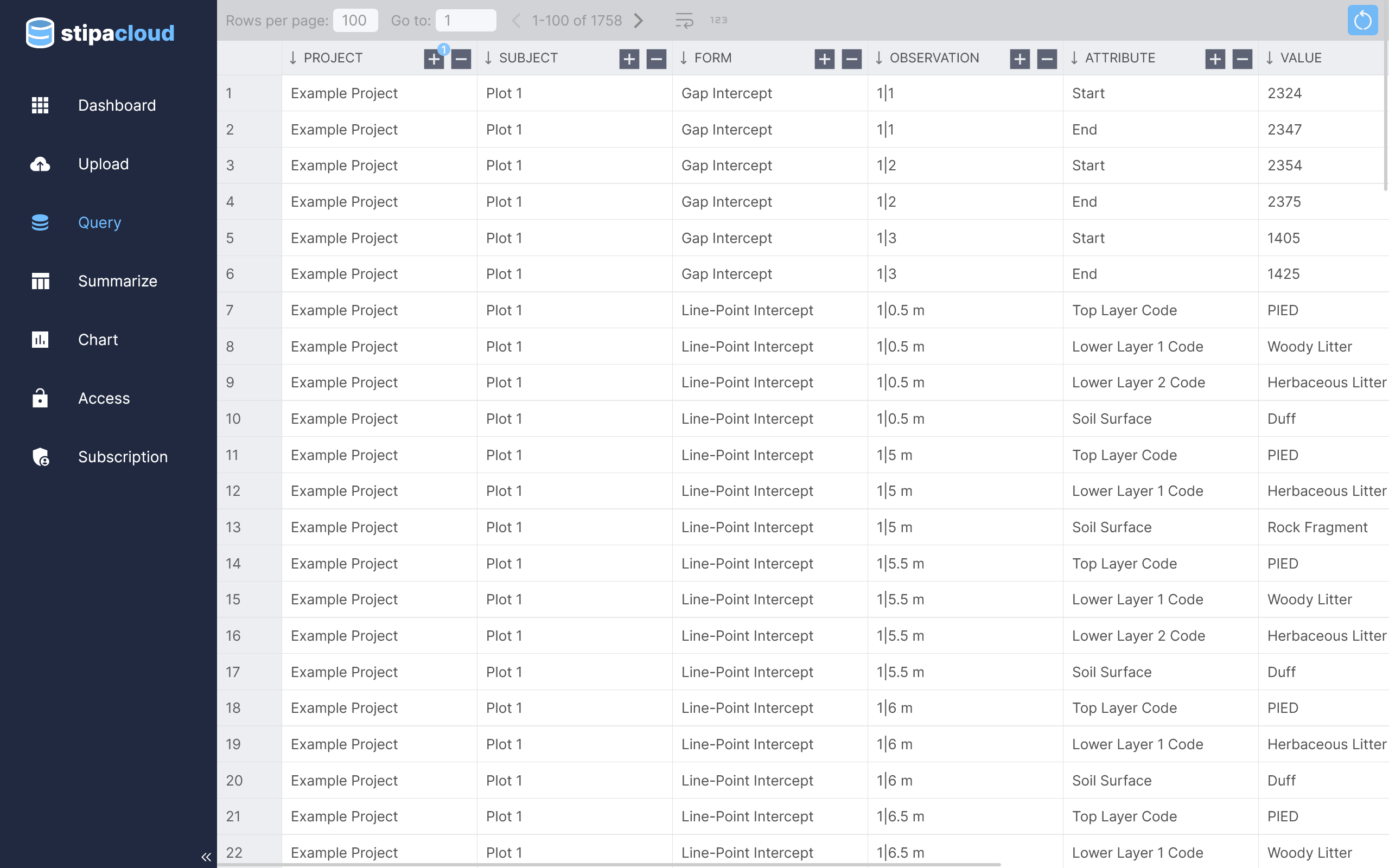
Figure 6. Viewing project data in tabular format.
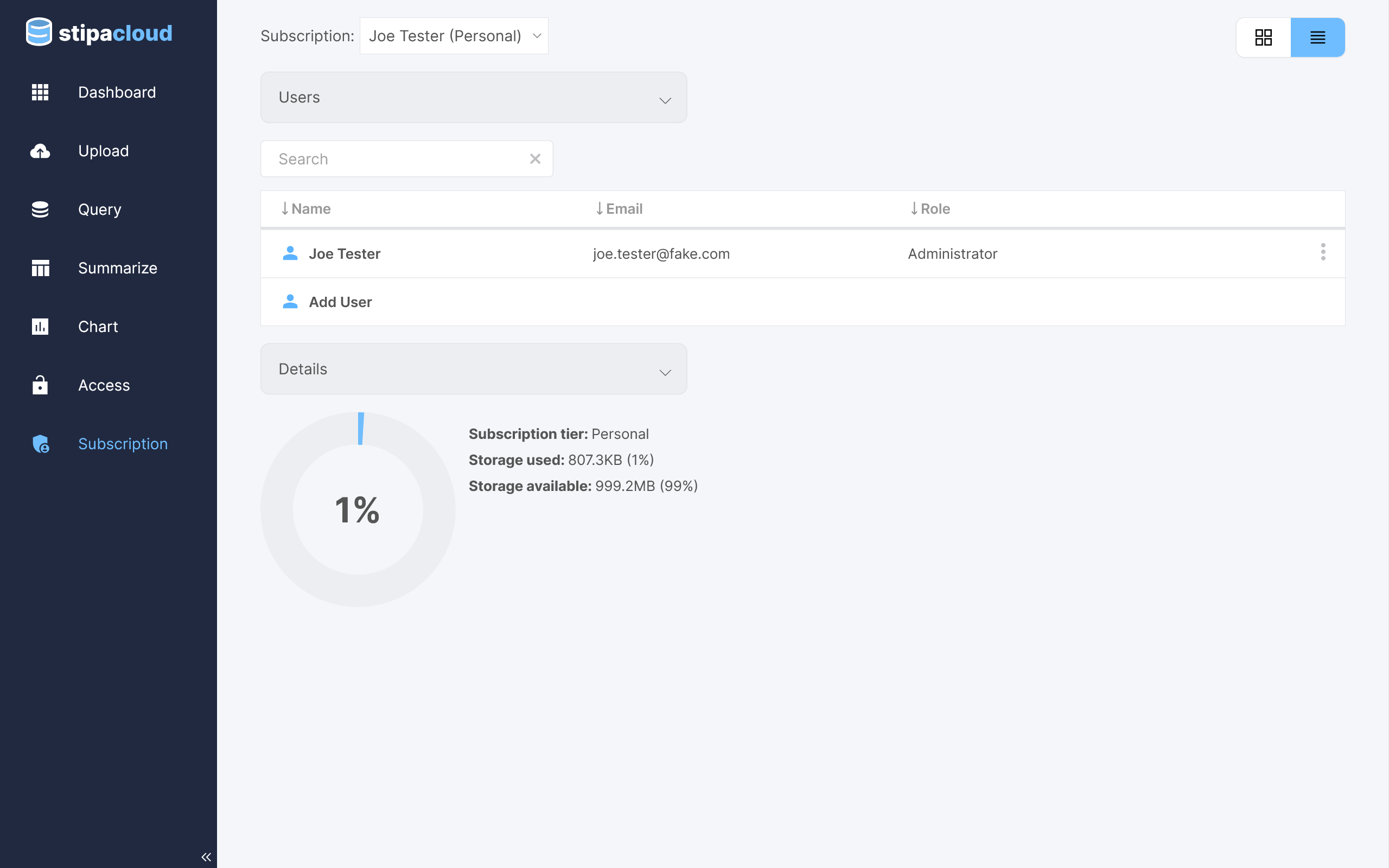
Projects are assigned to the Stipa Cloud subscription that is active when the Project is first created. Data for these Projects will be included in the storage usage of that subscription. To change the active subscription, navigate to the Subscription view and select the desired subscription from the menu at the top of the view. The selected subscription will remain active until another subscription is chosen, even after logging out of Stipa Cloud.