Querying Your Data

Data stored in Stipa Cloud can be easily queried for review, export, and editing. Data uploaded to Stipa Cloud must conform to the Stipa Data Specification, which makes it possible to display some or all of your data in a single table, regardless of which data collection Project it comes from. Each row represents a data entry and contains the Project, Subject, Form, Observation, Attribute, Value, and Date of that entry.
After logging in to the dashboard page, navigate to the Query view by selecting the appropriate tab from the menu on the left side of the screen.
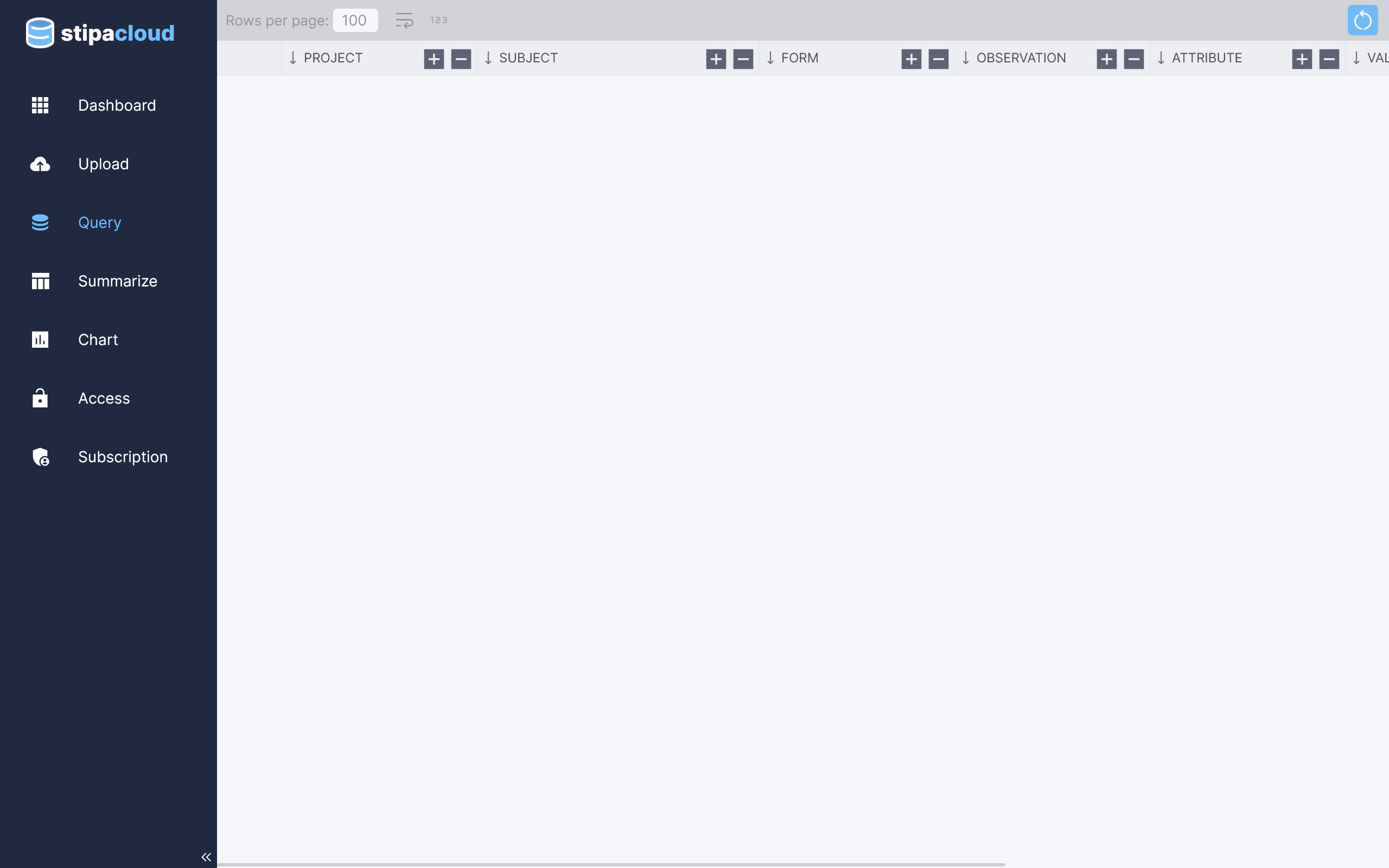
Figure 1. Query view.
In many cases, you will want to view only a subset of the data you have stored in Stipa Cloud. This is done by applying one or more filters to the query. Add and remove filters using the plus and minus buttons located on the right side of each table column header. Initially, only the Project filter is populated. Other filters become available once one or more Project has been selected and applied.
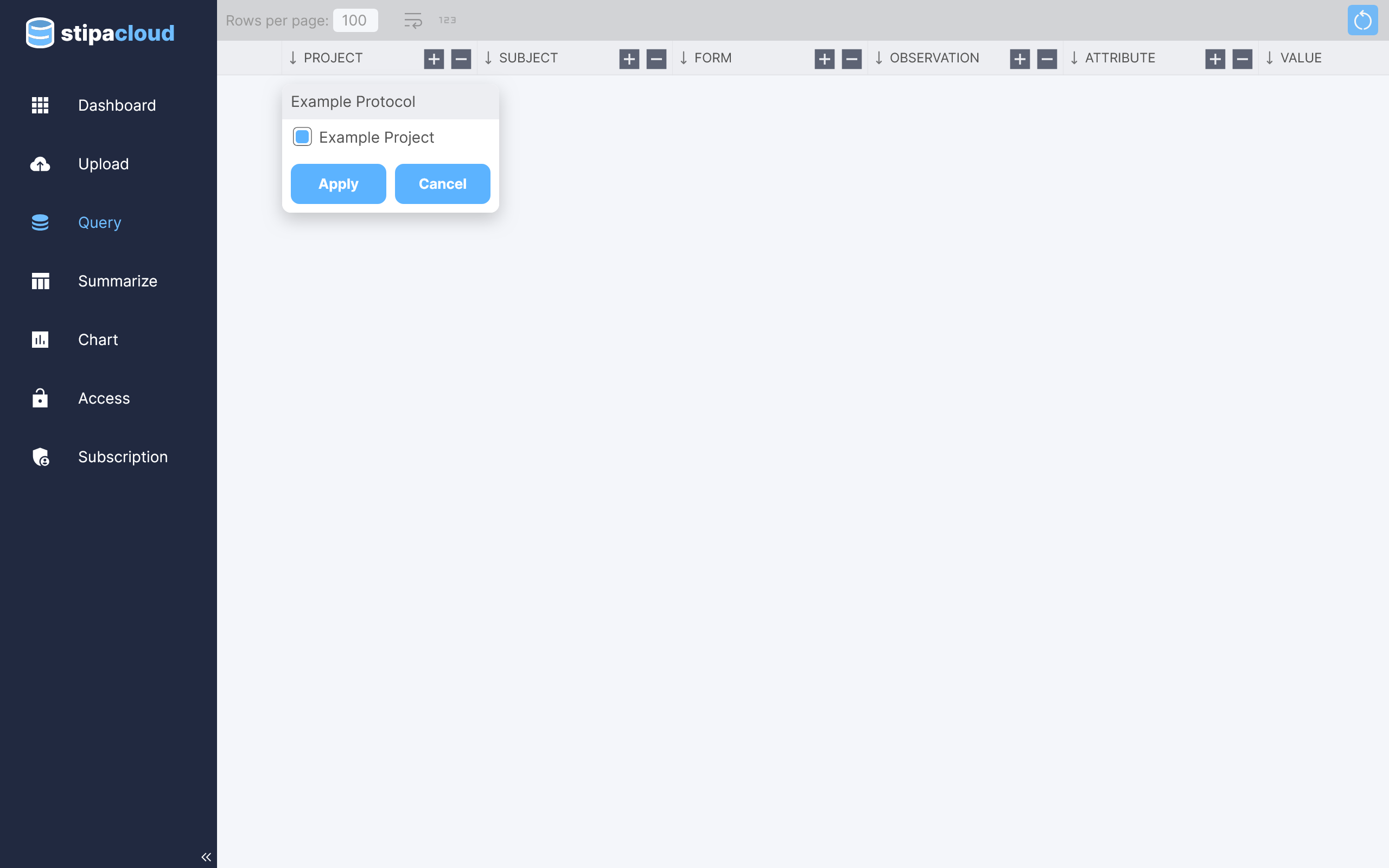
Figure 2. Applying query filters.
Data are queried and displayed each time a filter is modified. Buttons at the top of the table can be used to view additional pages if the number of records exceeds the selected table page size. As many as 400 and as few as 50 records can be viewed at one time. A description of each filter option can be viewed by hovering over the option.
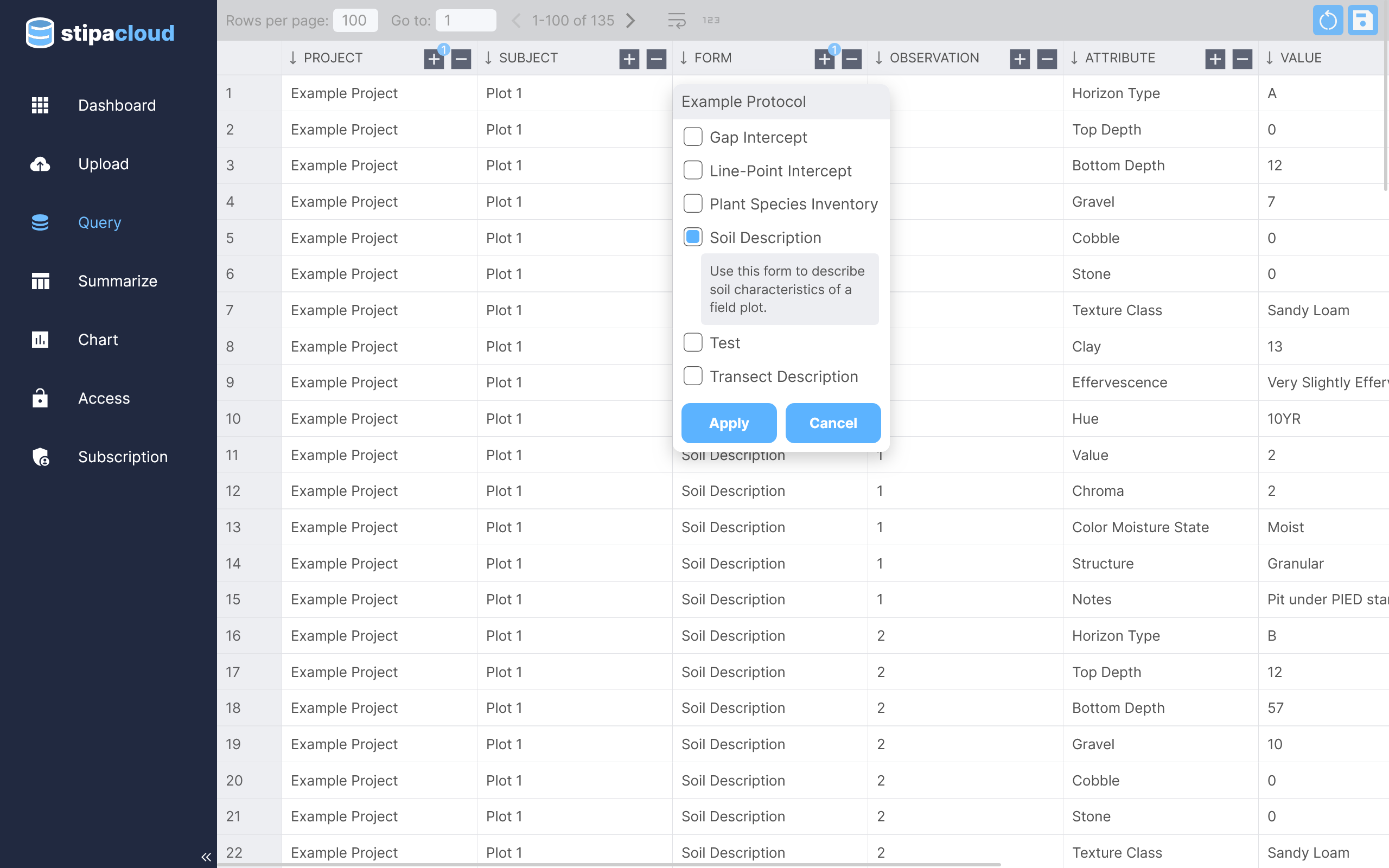
Figure 3. Browsing query data.
By default, data are displayed using the labels documented in the associated Stipa Data Protocol. If you prefer to view raw data values, simply toggle the Show Values button at the top of the table.
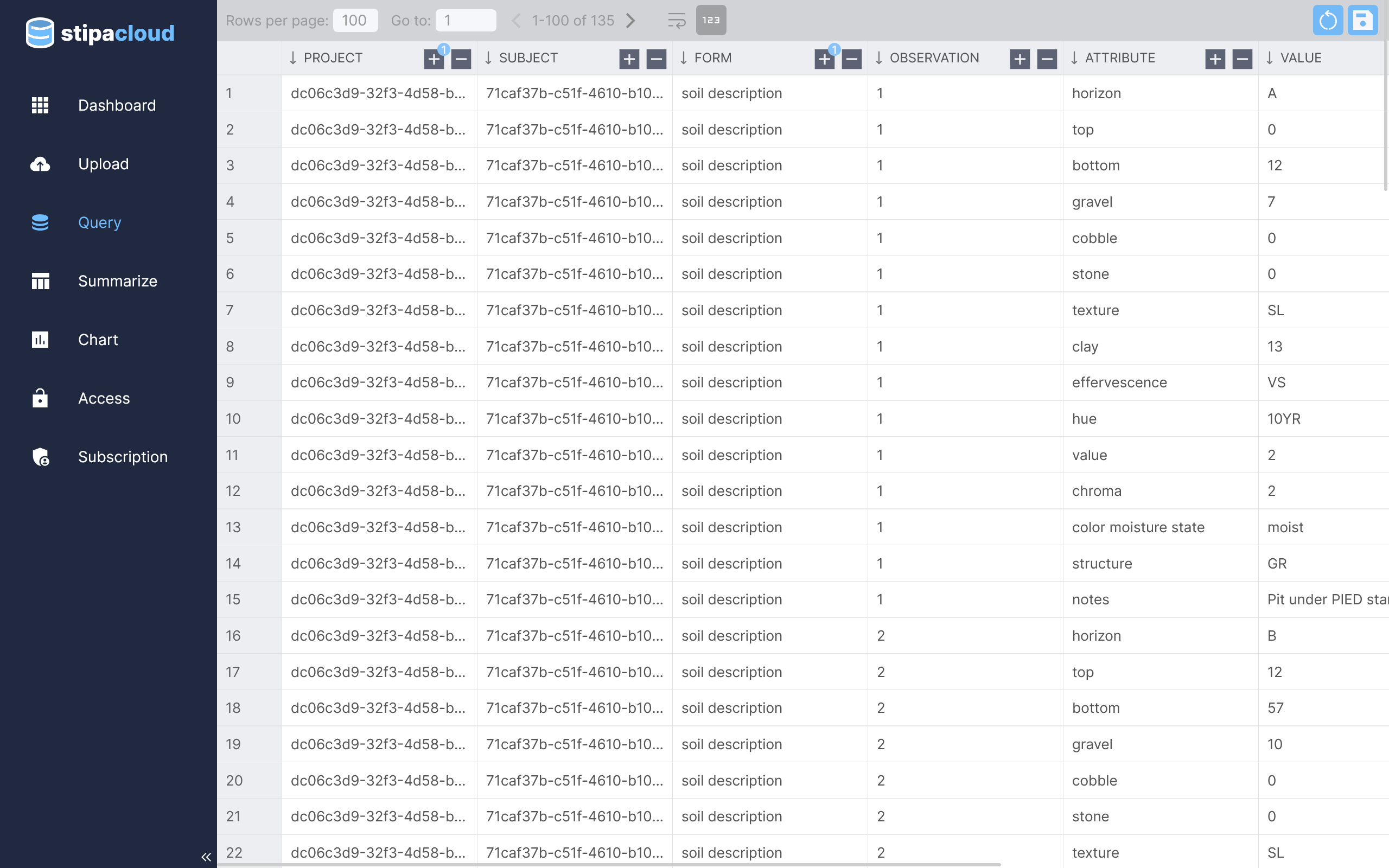
Figure 4. Viewing raw data.
Table columns and rows can be easily resized by clicking on and dragging the borders of the respective table headers. Data can also be wrapped within cells by toggling on the Wrap Content button at the top of the table.
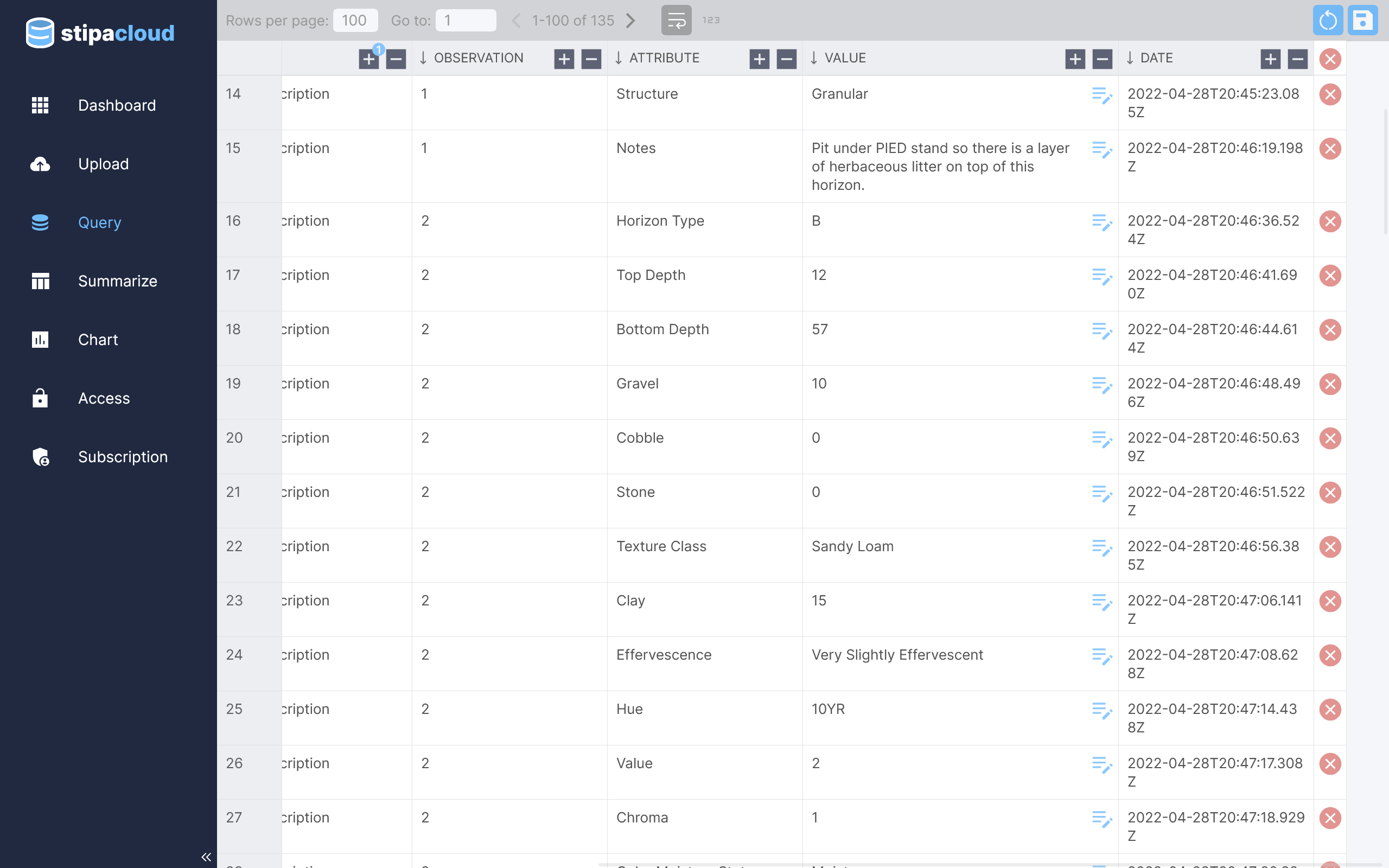
Figure 5. Resizing table columns and rows.
Records can be edited by clicking on the Edit button located on the right side of each Value column cell. A dialog box will appear with the appropriate control for editing the record. The control incorporates all constraints documented in the associated Data Protocol for the relevant attribute, including allowable categories, maximum text length, number ranges, and so on. Edits can only be made by users having the Owner or Editor role.
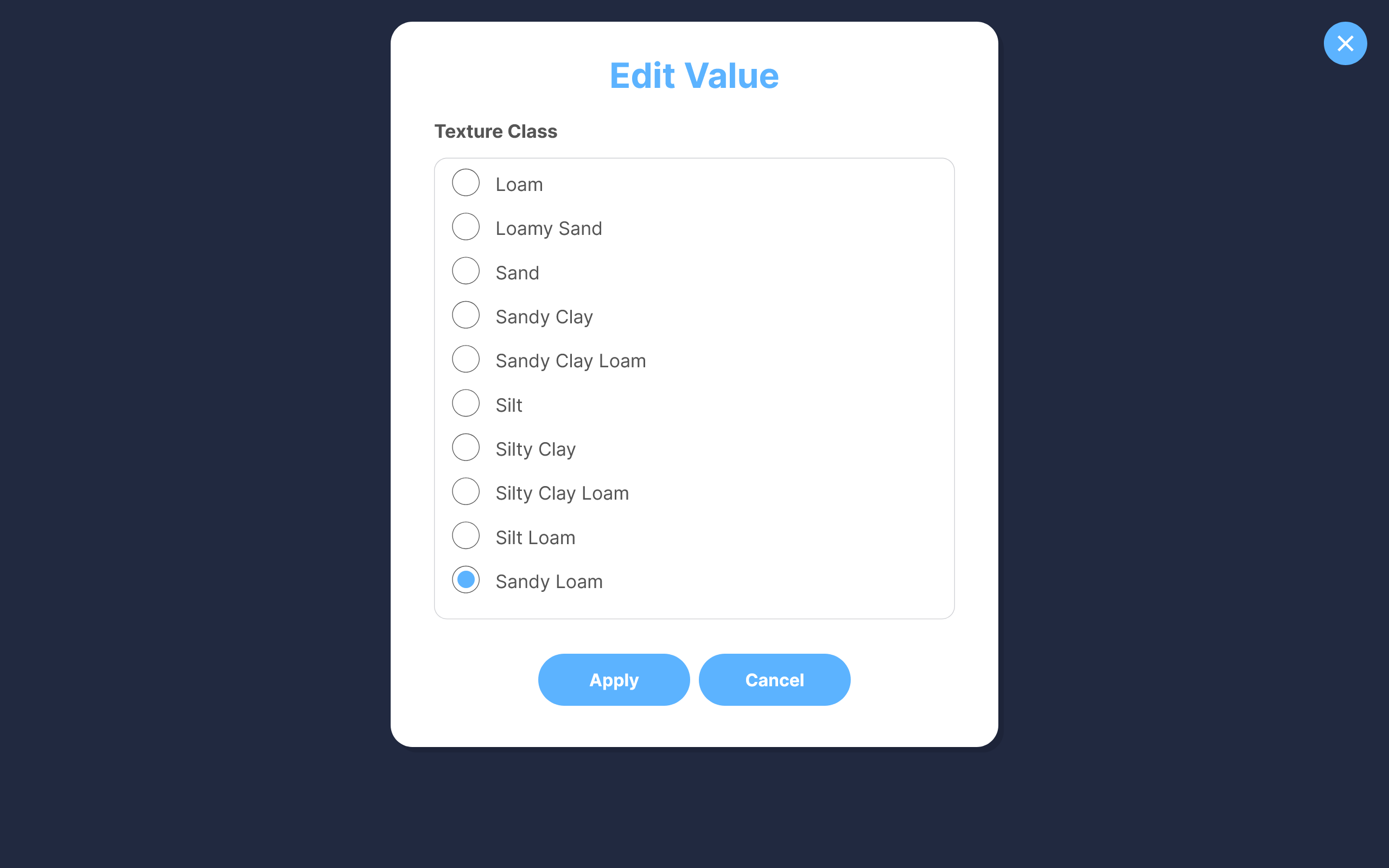
Figure 6. Editing data.
Records can also be permanently deleted using the Delete button located at the end of each row. All records in the current query (including those not currently shown) can be deleted using the Delete All button at the end of the column header row.
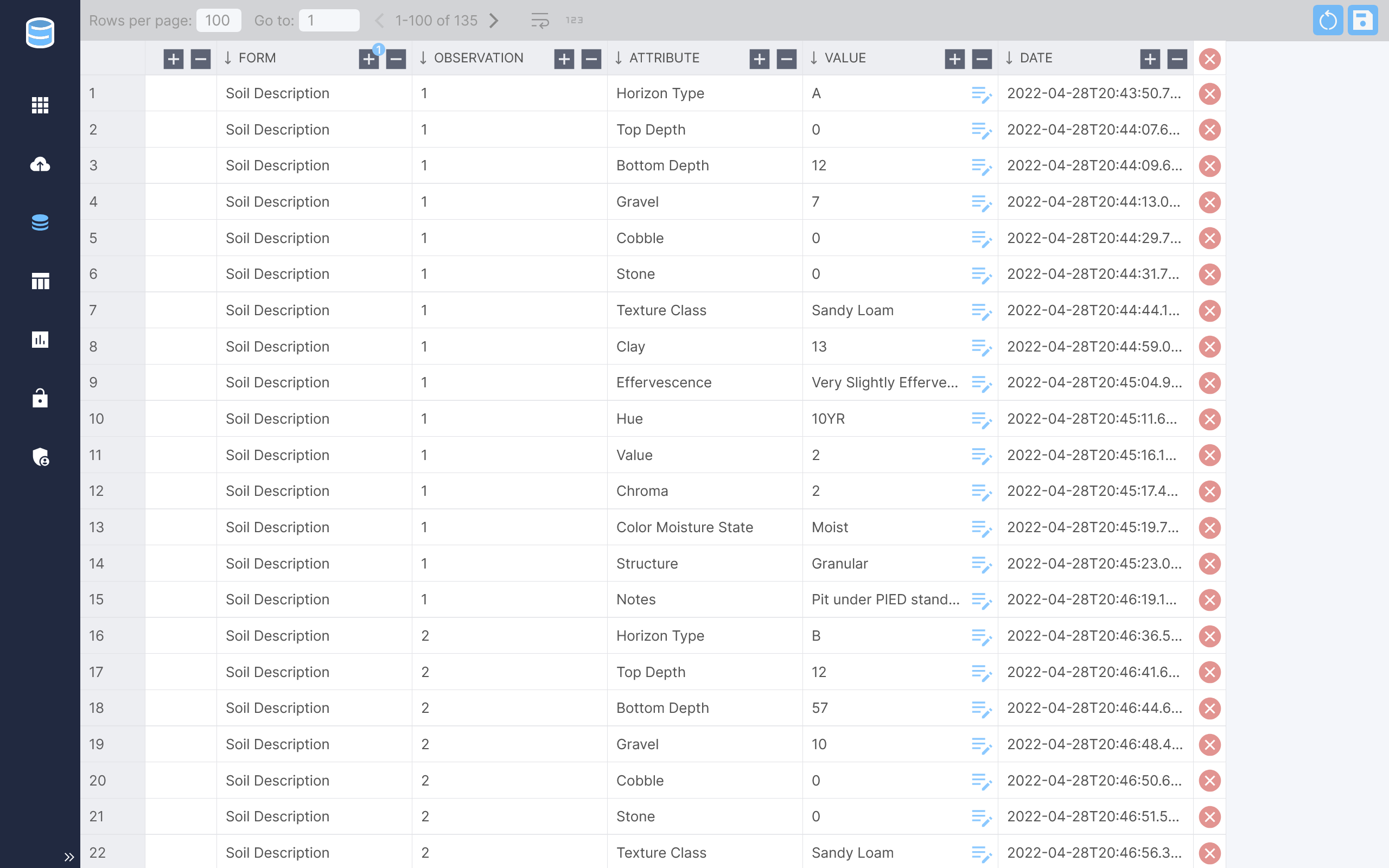
Figure 7. Deleting records.
Save a query using the save buttons in the upper right corner of the view. Any saved query can be immediately accessed via the Dashboard view. Share, export, or delete a query using the overflow menu located at the upper right corner of the catalog item.